![[object Object]](https://umsousercontent.com/lib_YdDMIrKyJgRxVKvp/4tf07t8tfz3kfcmw.png?w=400)
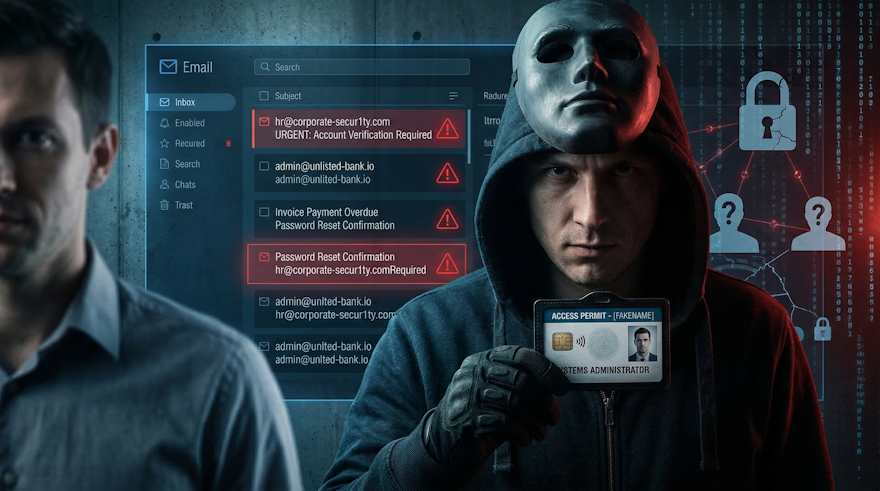
Email remains one of the most common ways cybercriminals target businesses. Impersonation and email spoofing attacks are designed to trick employees into taking actions that compromise company data, finances, or personal information.
Understanding these threats and knowing what to look for in tools like Microsoft Outlook can protect your business from costly mistakes.
What Are Impersonation and Email Spoofing Attacks?
Email spoofing occurs when attackers send emails that appear to come from a trusted source, such as a colleague, manager, vendor, or even your CEO.
Impersonation attacks are a more targeted form of spoofing where attackers carefully mimic someone you know. These attacks often aim to:
Steal login credentials
Trick employees into transferring money
Get staff to open malicious attachments
Request sensitive company information
Because the email appears legitimate, unsuspecting users may respond without thinking, making these attacks highly effective.
How to Spot a Spoofed or Impersonation Email
While some attacks are sophisticated, there are common warning signs that users can look for:
1. Check the Sender’s Email Address
Even if the display name looks familiar, always check the actual email address:
In Outlook: Double-click the sender’s name or hover over it to see the full address.
Look for subtle changes or misspellings (e.g., “.com” vs “.co” or extra characters in the domain).
2. Look for Generic Greetings
Impersonation emails may use vague greetings like:
“Dear Employee”
“Hi Team”
“Hello Customer”
Legitimate internal emails usually address you by name.
3. Inspect Links and Attachments
Hover over links without clicking to check the real URL.
Avoid opening attachments from unknown senders or unexpected emails.
Watch for unusual file types, such as
.exe,.js, or.scr.
4. Watch for Urgent or Threatening Language
Attackers often try to create a sense of urgency:
“Immediate action required”
“Your account will be closed”
“Transfer this payment now”
Pause and verify with the sender through a separate communication channel before acting.
5. Check the Email Header (Advanced)
For suspicious emails, check the full header to see:
The source IP address
The actual domain the email came from
Whether SPF, DKIM, and DMARC checks passed
This can confirm whether the email really came from the claimed sender.
Best Practices in Outlook for End Users
Here are some practical steps your staff can take in Outlook to protect themselves:
Always verify the From address – don’t rely on the display name.
Enable email previews and Reading Pane – hover over links and attachments safely.
Use flags and categories for suspicious emails – make reporting easier.
Report suspicious emails – use your company’s “Report Phishing” button or forward to IT.
Enable multi-factor authentication (MFA) – even if credentials are stolen, MFA adds an extra layer of protection.
How Businesses Can Reduce Risk
Technical controls can help protect your company from spoofing and impersonation attacks:
Regular security awareness training to teach employees how to spot suspicious emails.
Test phishing simulations to reinforce learning and identify vulnerable users.
Conclusion
Email impersonation and spoofing attacks are becoming increasingly sophisticated. Users who know how to inspect the sender address, check links, and verify unusual requests can stop attacks before they cause harm.
Combining staff training, email security tools, and proper IT policies is the best way to protect your business from these threats.
If your business wants to strengthen email security and train employees to spot impersonation attacks, we can help implement advanced email protections and provide security awareness programs for your staff.